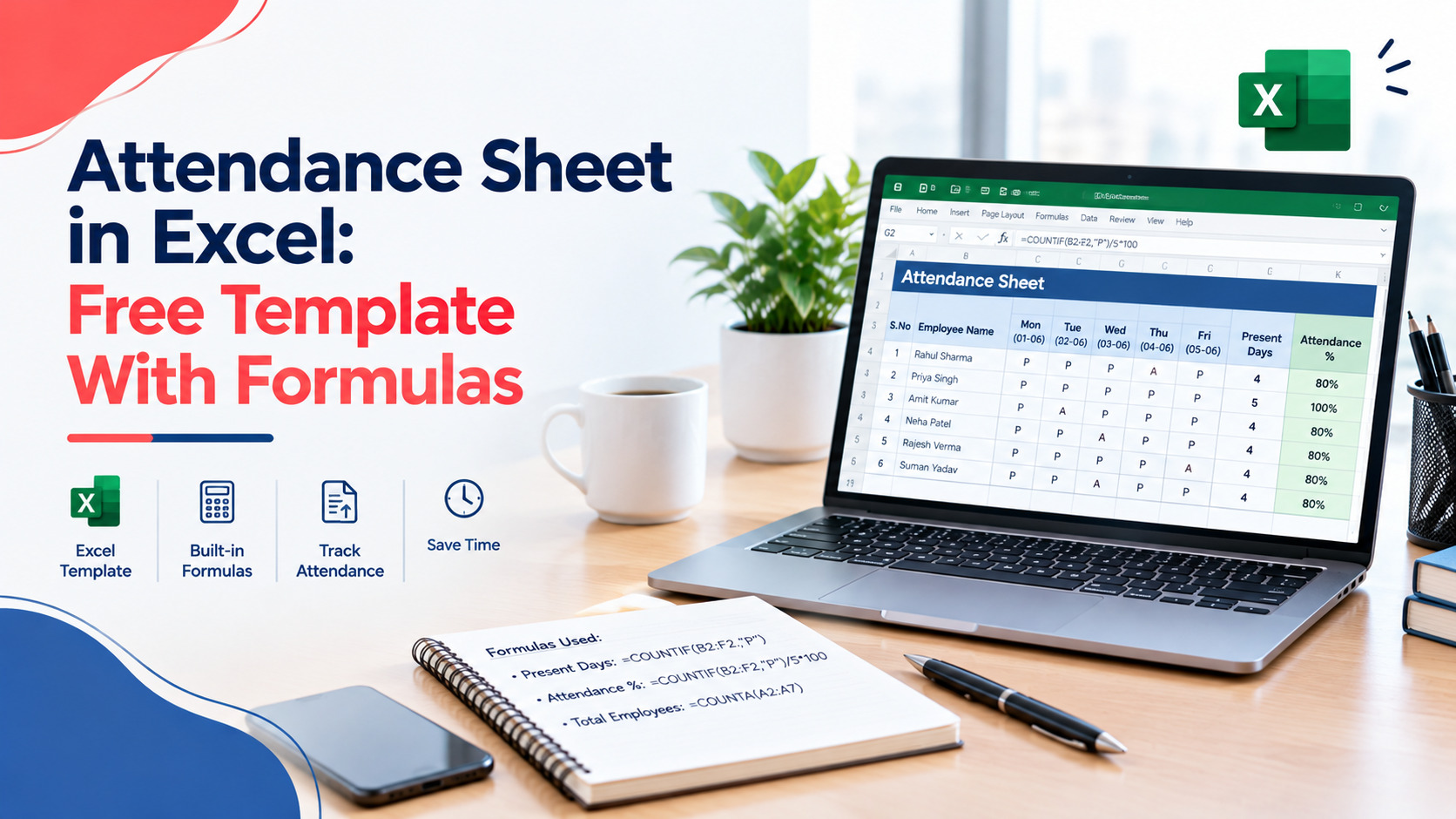
Attendance Sheet in Excel: Free Monthly Template With Auto Formulas
Most attendance sheets start as a quick grid. Then someone adds a column. Someone else types “Present” instead of “P”. By the 25th, half the totals are wrong and nobody knows which half.
This guide gives you a free monthly attendance sheet for Excel, with formulas that count present days, leave, absences and late marks for you. You’ll see how each formula works, how to handle half days and late marks, and how to turn the sheet into a yearly tracker. We’re also honest about where Excel starts to struggle, and how to move to software when you get there. It’s written for HR managers, business owners and employees in India.
Download the free Excel attendance sheet
You can download the free Excel attendance sheet below, or open the Google Sheet and make your own copy. It tracks up to 31 days per employee, shades Sundays and holidays for you, and counts present days, leave, absences, late marks and attendance percentage. Nothing is locked, and you don’t need to give an email.
[DOWNLOAD PLACEHOLDER: Attendance sheet, Excel (.xlsx), monthly template with formulas]
[LINK PLACEHOLDER: Attendance sheet, Google Sheet (make-a-copy link)]
A note on the files: both are free and editable. Change the codes, add columns or rename the tabs to suit your team. If you want a printed, legal-style version, see our guide on the attendance register format.
If you’d rather build it yourself, here’s the whole layout. Paste each formula into the cell shown.
SETUP
B2: month start date, for example 01-10-2026 (format as a date)
Sheet "Holidays": list holiday dates in A2 to A20
DATE ROW
C4: =B2
D4: =IF(C4="","",IF(C4+1>EOMONTH(B2,0),"",C4+1))
(copy D4 across to AG4)
C5: =IF(C4="","",TEXT(C4,"ddd"))
(copy C5 across to AG5)
EMPLOYEE ROWS (start at row 6)
A: Emp ID B: Name C to AG: one code per day
CODES (use a dropdown)
P = Present, LP = Late present, HD = Half day, A = Absent,
PL = Paid leave, WO = Weekly off, PH = Public holiday
SUMMARY COLUMNS
AH6 (present days): =COUNTIF(C6:AG6,"P")+COUNTIF(C6:AG6,"LP")+0.5*COUNTIF(C6:AG6,"HD")
AI6 (paid leave): =COUNTIF(C6:AG6,"PL")
AJ6 (absent days): =COUNTIF(C6:AG6,"A")+0.5*COUNTIF(C6:AG6,"HD")
AK6 (late marks): =COUNTIF(C6:AG6,"LP")
AL6 (working days): =NETWORKDAYS.INTL(B2,EOMONTH(B2,0),11,Holidays!A2:A20)
AM6 (attendance %): =(AH6-INT(AK6/3)*0.5)/AL6
(format AM as a percentage, copy row 6 down)
DROPDOWN
Select C6 to AG200, then Data, Data Validation, List: P,LP,HD,A,PL,WO,PH
SHADE SUNDAYS AND HOLIDAYS
Select C6 to AG200, then Conditional Formatting, New Rule, use a formula:
=OR(WEEKDAY(C4)=1,COUNTIF(Holidays!A2:A20,C4)>0)
A variation for shift workers. If you track in and out times, or you have night shifts, use one row per person per day instead:
A: Date B: Name C: In time D: Out time E: Hours F: Overtime
E2: =MOD(D2-C2,1)*24
F2: =MAX(0,E2-8)
(format C and D as time, E and F as numbers, copy down)
The MOD part is what makes night shifts work. A worker who clocks in at 22:00 and out at 06:00 gets 8 hours, not a negative number. If you want to turn those hours into pay, our guide on how to calculate working hours covers it.
How the formulas work (COUNTIF, IF, NETWORKDAYS)
Three formulas do most of the work. COUNTIF counts how many times a code like P appears in a row. NETWORKDAYS.INTL counts working days after removing Sundays and holidays. IF tidies up blanks and special cases. Learn those three and you can build or fix any attendance sheet yourself.
COUNTIF.=COUNTIF(C6:AG6,"P") looks across one employee’s row and counts every cell that says exactly P. It matches the whole cell, so “P” won’t count “PL” or “PH”. That’s handy. It’s also why a stray space, like “P “, breaks the count. Microsoft’s guide toCOUNTIF covers the details.
NETWORKDAYS.INTL. Plain NETWORKDAYS treats Saturday and Sunday as the weekend, which suits a five-day week. Most Indian workplaces run a six-day week, so the template uses the INTL version. The number 11 tells Excel that only Sunday is a day off. The last part points to your holiday list. Microsoft explains the basicNETWORKDAYS function, and the INTL version just adds the weekend choice.
- The date row uses IF so that months with fewer than 31 days leave the extra columns blank, instead of showing dates from next month.
Worked example: one employee, a 31-day month
The month has 31 days, 4 Sundays and 1 public holiday, so 26 working days. The employee has:
- 19 days P
- 3 days LP
- 2 days HD
- 1 day PL
- 1 day A
Check the days: 19 + 3 + 2 + 1 + 1 = 26, plus 4 WO and 1 PH = 31. Good.
The sheet gives you:
- Present days: 19 + 3 + (2 x 0.5) = 23
- Absent days: 1 + (2 x 0.5) = 2
- Late marks: 3, which means INT(3 / 3) x 0.5 = 0.5 day deducted
- Attendance: (23 − 0.5) / 26 = 22.5 / 26 = 86.5 percent
Does paid leave count as present? That’s your policy to set. If it does, add the paid leave cell, and you get (22.5 + 1) / 26 = 90.4 percent. You can check any result with our attendance percentage calculator.
Add late marks and half days
Mark a late arrival with the code LP and a half day with HD. COUNTIF then counts each one. A half day adds 0.5 to present days, and a rule like “three late marks equal a half day” takes one extra formula. Set the rule once, then apply it to everyone.
Here’s how each piece works:
- Half days.0.5*COUNTIF(C6:AG6,"HD") adds half a day for each HD. The same half day also goes into the absent column, so the two always add up to a full day.
- Late marks.COUNTIF(C6:AG6,"LP") counts them. LP still counts as present, so a late arrival doesn’t lose a full day.
- The late rule.INT(AK6/3)*0.5 turns every three late marks into half a day off. INT drops the leftover, so two late marks cost nothing and six cost a full day. Change the 3 to match your policy.
Don’t invent a rule halfway through the month. Write it down before you start, and tell your team. If you want to change it later, change it for everyone from a fixed date.
Build a yearly attendance tracker
To build a yearly tracker, copy the monthly sheet twelve times, name the tabs Jan to Dec, and add a Year tab that adds up present days and working days from each month. Divide one by the other to get the yearly percentage. Excel can do it with a single formula.
Here’s how:
- Copy the tab. Right-click the monthly tab, choose Move or Copy, tick “Create a copy”, and repeat until you have 12.
- Rename and reset. Name them Jan to Dec, change the date in B2 on each, and clear the codes.
- Add a Year tab. List the same employees in the same order, with the same row numbers as the monthly tabs.
- Add up the months. In the Year tab, present days: =SUM(Jan:Dec!AH6). Working days: =SUM(Jan:Dec!AL6).
- Get the percentage.=present days / working days.
One catch. That Jan:Dec shortcut works in Excel, but not in Google Sheets. In Google Sheets, add each month by name instead: =Jan!AH6+Feb!AH6+Mar!AH6 and so on.
Also keep the tabs in the same order. The shortcut adds every tab that sits between Jan and Dec, so an extra tab dropped between them gets counted too.
Five problems that make Excel attendance fail at 30+ people
Excel works well for small teams, but it starts to crack around 30 people. Edited formulas, many versions of one file, no proof of who actually came, shift and leave rules that outgrow your formulas, and month-end rework all become regular problems. Here are the five, and what to do about each.
- Someone breaks a formula. One overwritten cell and a total is quietly wrong. Lock the formula columns, and keep a clean copy of the template.
- Too many versions. “Attendance_final_v3_NEW.xlsx” is a warning sign. Keep one master file in one place, and let only one person edit it.
- No proof of who came. A typed P only shows what someone entered, not who was there. Nothing stops a supervisor marking a friend present. This is where a biometric or mobile punch beats a spreadsheet.
- Rules outgrow the formulas. Rotating shifts, night shifts, overtime slabs and comp-off rules turn a simple COUNTIF sheet into a maze. Past a point, the sheet is more work than the problem.
- Month-end rework. Chasing missing marks, fixing typos and re-typing totals into payroll eats hours. Those hours, and the errors that sneak in, are the real cost.
If three or more of these sound familiar, it’s time to look at software.
Excel vs attendance software: a cost and risk comparison
Excel costs nothing in cash but a lot in time, and software costs a monthly fee but gives the time back. For 50 people, a sheet might eat 6 to 10 hours a month, worth Rs 1,500 to 2,500, close to the Rs 2,500 a month software would cost. Risk is where they really differ.
Cost, for 50 employees (illustrative):
- Excel: Rs 0 for the file. Assume 6 to 10 hours of HR time a month at about Rs 250 an hour, so Rs 1,500 to 2,500 a month in time.
- Software: assume Rs 50 per user per month, so 50 x Rs 50 = Rs 2,500 a month, with no sheet to maintain.
So on cost alone, it’s close. If your sheet takes 10 hours a month, they’re about equal. If it takes 4, Excel is cheaper. Swap in your own hours and pay rates.
Risk, side by side:
- Errors. Excel relies on people typing correctly. Software calculates from the punch.
- Proof. Excel records what someone typed. Software can record who punched, and from where.
- Audit trail. Excel doesn’t show who changed a cell. Good software does.
- Records. Excel files get lost, copied or edited. Software keeps one record.
- Growth. Excel gets slower with each new rule. Software handles shifts, leave and overtime as settings.
My honest take: under about 25 people with one shift, Excel is fine. Past 30, or with shifts, branches or payroll disputes, the risk starts to outweigh the savings. For a closer look at tools for smaller teams, see attendance software for small business.
Import Excel data into attendance software
Yes, you can move Excel data into attendance software without starting over. Clean the sheet so each employee has one row with an ID, name, department and shift, then export it as CSV or Excel and upload it with the software’s import option. Check a few totals against your sheet before you switch.
A simple way to do it:
- Clean the list. One row per employee. Same spelling for departments and shifts. No merged cells.
- Check IDs. Employee IDs should be unique and match payroll.
- Export. Save the sheet as CSV, or keep it as .xlsx if the software accepts it.
- Import. Use the software’s import tool and map your columns to its fields.
- Compare. Pick five employees and check their totals against your last month in Excel.
- Run both for a month. Keep the sheet going until the numbers match.
Check what the import supports before you promise your team anything. Some tools bring in only the employee list, while others also take past attendance.
If you’d like to automate this, attendance.ai offers attendance management software that handles attendance, leave and reports. Whether you need it yet depends on your size, and a well-kept sheet is fine for a while.
Conclusion
A good Excel attendance sheet is simple. Use one code per day, let COUNTIF and NETWORKDAYS.INTL do the counting, and decide your half day and late rules before the month starts. The free template above does all of that for you.
Excel works well for small teams. Once you pass about 30 people, or you add shifts, overtime or branches, the risks grow: broken formulas, many versions of one file and no proof of who actually came. Here’s a quick test:
- If month-end takes you hours, it’s time to look at software.
- If you can’t show who was really present, a typed P isn’t enough.
- If you’re happy with the sheet, keep it and back it up.
Start with the template, test it on one month, and compare the totals with your own count before you rely on it.
Frequently asked questions
1. How do I make an attendance sheet in Excel?
Put dates across the top and employees down the side. Enter a code like P, A or HD for each day. Then use COUNTIF to count each code, and divide present days by working days for the percentage.
2. What formula do I use to count present days in Excel?
Use =COUNTIF(C6:AG6,"P"), with your own range. It counts every cell in the row that says exactly P. Add other codes, like LP for late present, with a plus sign.
3. How do I count working days without Sundays and holidays?
Use =NETWORKDAYS.INTL(start, end, 11, holidays). The 11 tells Excel that only Sunday is a day off. The last part is the cell range with your holiday dates.
4. Can I use the same attendance sheet in Google Sheets?
Yes, mostly. COUNTIF, NETWORKDAYS.INTL and EOMONTH work in both. The one exception is the Jan:Dec shortcut for adding months, which only works in Excel.
5. When should I switch from Excel to attendance software?
Usually around 30 employees, or sooner if you run shifts, overtime or several branches. If month-end takes hours, or you can’t prove who actually came, it’s time to switch.